OPCServer:Create Variables manually with Intouch FS Gateway
Jump to navigation
Jump to search
Create Variables manually with Intouch FS Gateway
To create Variables with Intouch FS Gateway manually with Intouch, please follow the description step by step.
- Start the ArchestrA System Management Console
- Start ⇒ Programme ⇒ Wonderware ⇒ System Management Console
- Add a OPC Node via <Add OPC Object> with the name IBH:

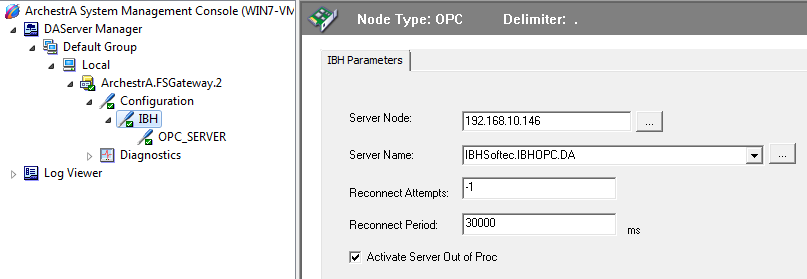
- As <Server Node> enter the IP Address of the PC , where the IBH OPC Server is running:
- As <Server Name> choose the IBH OPC Server:

- Add a OPC Group with the name OPC_Server:
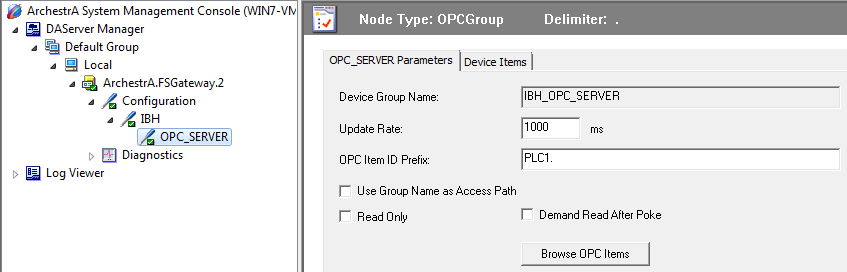
- Within the filed <OPC Item ID Prefix> the name of the PLC can be entered, which was created within IBH OPC Editor f.e. PLC1 followed by a dot.
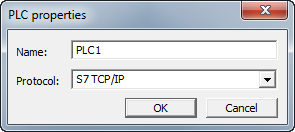
- So the notation <Access-path> within the later <Item> creation can be omitted.


- Start the Intouch WindowMaker and create a new Acess name f.e. IBH_OPC :
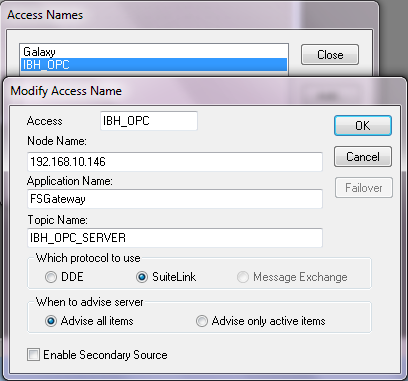
- As <Node name> enter the IP Address of the PC , where the IBH OPC Server is running:
- As <Application name> enter FSGateway.
- The <Topic-Name> is the combination of Node name IBH and OPC Group name OPC_Server.

- Now the Tagnamess can be created:
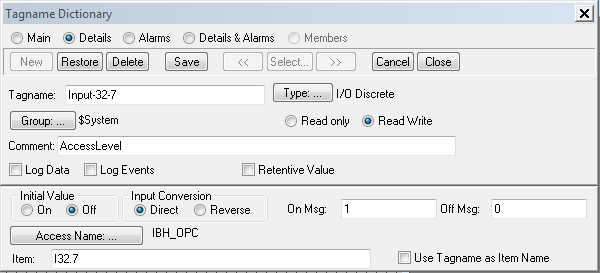
- Select the newly created Access Name: IBH_OPC.
- The entry <Item> consists of:
- <Access-Path>.<Item Name>.
- The <Access-Path> represents the name of the <PLC>, which has been created in the IBH OPC Editor.
- The <Access-Path> is not necessary in our sample, because it is aready defined within <OPC Item ID Prefix> .

- To access the variables which are already defined within the IBH OPC Editor the correct syntax is:
- Generic.<Variable Name>
- The configuration is now completed and the variables can be used:
