IBH Link UA:Redundancy
This page describes the setup and monitoring of redundant OPC UA servers with the IBH Link UA quad-core.
Original redundancy manual as PDF (German, 2023)
Overview
The IBH Link UA supports non-transparent server redundancy in Hot failover mode. All servers in a redundant set are powered on, operational and work independently. Each server has its own Server URI and endpoint URL.
An OPC UA client can discover the other members of the redundant set through the redundancy information provided by a server. The client must support and perform the actual switch to another server.
| Property | Implementation |
|---|---|
| Redundancy model | non-transparent |
| Failover mode | Hot |
| Server state | all servers are operational in parallel |
| Failover decision | performed by the OPC UA client |
| Supported devices | IBH Link UA quad-core |

Requirements
- At least two IBH Link UA quad-core devices.
- A unique IP address and host name for every device.
- Substantially identical OPC UA, station and variable configuration on every server.
- Access to the same PLCs or data sources from every redundant server.
- An OPC UA client that supports non-transparent redundancy and Hot failover.
- Correct time settings and valid certificates on all participating devices.
Configure redundant servers
The configuration must be performed on every participating IBH Link UA.
- Open the web interface of the first IBH Link UA.
- Open the Security page.
- In Redundant Servers (only HOT mode supported), select Add redundant server.
- Enter the host name or IP address of the server and confirm with OK.
- Repeat the procedure for every server in the redundant set.
- Verify that the complete server list is shown.
- Configure the same server list on every other IBH Link UA.
Important: The local server itself must also be included in the list.
-
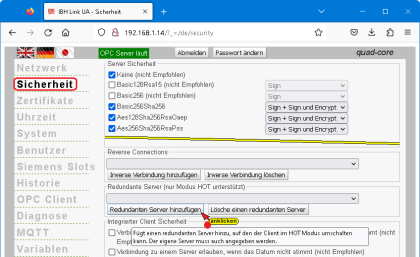 Add redundant servers on the Security page.
 -
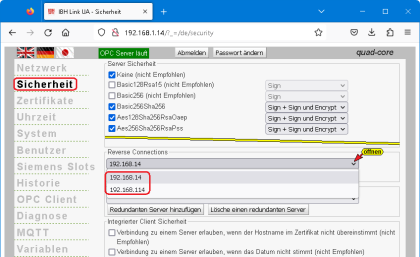 Verify the complete server list on every participating IBH Link UA.


Transfer the configuration to additional servers
The OPC UA configuration should be substantially identical on all servers. Device-specific settings such as host name, IP address and endpoint URL must remain unique.
Using the IBH OPC UA Editor
If the first server was configured with the IBH OPC UA Editor, the project can be used as the basis for the additional servers. Adapt the server and network settings for the target device before transfer. Then verify the complete redundant server list on every device.
Using the web interface
- Open the System page on the configured device.
- In Backup and restore settings, download the configuration. The file is normally named
ibhlinkua-settings.xml. - Keep an unchanged backup copy.
- Before using the file on another device, adapt the device-specific host name, IP address and endpoint URL values for the target device.
- On the target device, select and restore the configuration file under System.
- Perform the requested restart.
- After the restart, verify network settings, certificates, stations and the redundant server list.
Caution: Do not distribute an unchanged configuration file to multiple devices. Every server requires its own network identity and endpoint URL.
-
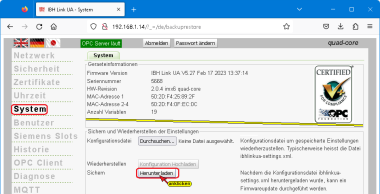 Download the configuration on the System page.
 -
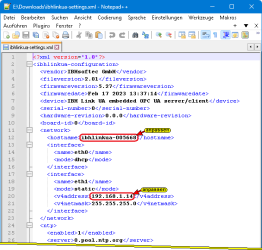 Adapt the host name and IP address for the target device.
 -
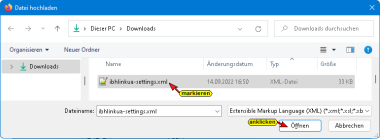 Select the adapted configuration file on the target device.


Status information provided by the server
The status values are available in the OPC UA address space below Objects / Server. A client can use them for server selection and monitoring of the redundant set.
| OPC UA variable | Path | Data type | Meaning |
|---|---|---|---|
RedundancySupport
|
ServerRedundancy
|
Int32 | Value 3 indicates Hot mode.
|
ServerUriArray
|
ServerRedundancy
|
String array | Contains the Server URIs of all configured redundant servers. |
ServiceLevel
|
ServerStatus
|
Byte | Describes the server's ability to provide data from the connected devices. |
-
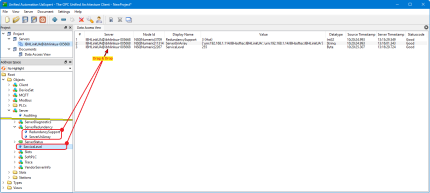 Redundancy variables in the UaExpert Data Access View.
 -
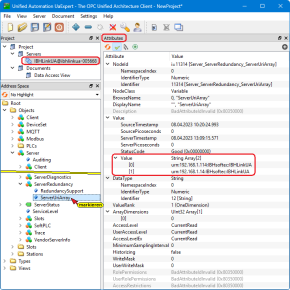 ServerUriArray entries in the Attributes view.


Evaluate ServiceLevel
A high ServiceLevel indicates a fully available server. If the value decreases, the client can select a more suitable server. After a connection is restored, the value increases accordingly.
For an IBH Link UA with four connected PLC CPUs, the manual provides this example:
| ServiceLevel | State |
|---|---|
| 255 | Data from all PLCs is available. |
| 199 | One PLC does not provide data. |
| 198 | Two PLCs do not provide data. |
| 197 | Three PLCs do not provide data. |
With additional connected PLCs, the value is reduced by one for each additional unavailable PLC. These values are status codes, not percentages.
Test redundancy with an OPC UA client
UaExpert can be used to verify the server information:
- Connect to one server in the redundant set.
- Open
Objects / Server / ServerRedundancyin the address space. - Read
RedundancySupportandServerUriArray. - Monitor
ServiceLevelbelowObjects / Server / ServerStatus. - Temporarily interrupt access to a PLC or server.
- Verify that
ServiceLevelchanges and that the client switches to an available server. - Restore the connection and verify that the status returns to normal.
Troubleshooting
- Server is missing from ServerUriArray: Check the server list on every device and include the local server itself.
- Client does not switch: Verify that the client supports non-transparent redundancy and Hot failover and is configured accordingly.
- Servers cannot be reached: Check IP addresses, host names, routing and firewall rules.
- Certificate errors: Trust the certificates of all servers in the client and verify date and time.
- Different information models: Compare the project, stations and variable configuration on every server.
- Unexpected ServiceLevel: Check the PLC connections and station status separately on every server.